


Operating guide
L6 lithium cabinet, step by step
3 L6 lithium cabinet procedures from the user manual, with the real screen at every step: daily check of a cabinet; look at another cabinet; an alarm is showing. Section numbers refer to the manual.
Daily use
Daily check of a cabinetHome, system info, cabinet status and data, cells.§2.3 – 2.4 (pp. 3–13) · 10 steps
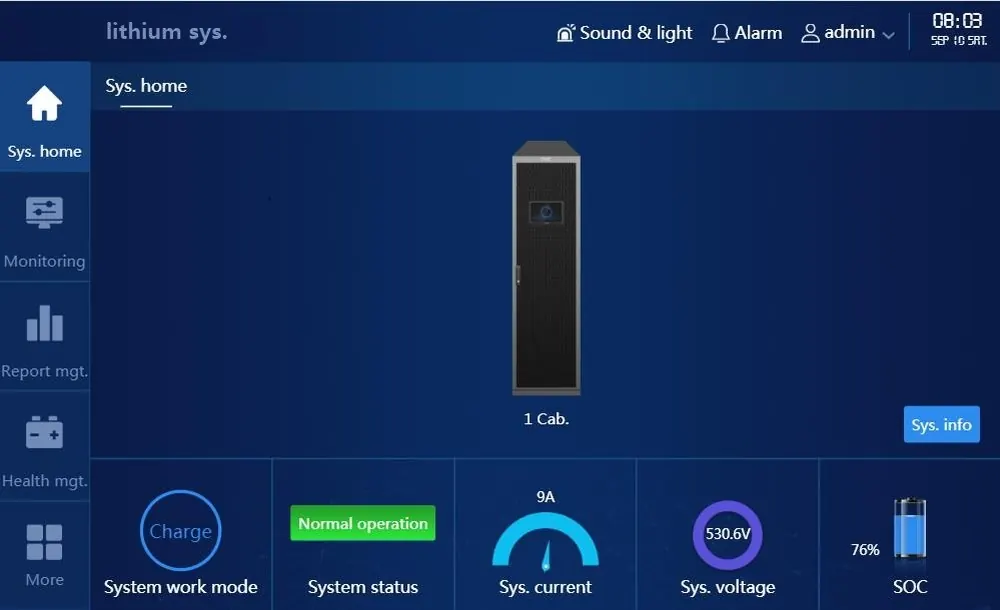
Home: the cabinet color (blue normal, yellow alarm, red protected, gray not connected), work mode, status, current, voltage, SOC.
Press: Sys. info
System home Sys. info: where the highest and lowest cell voltage and temperature are. Tap outside the window to close it.
Press: Close
System info Tap the cabinet.
Press: Battery cabinet
You should see Communication, fire control, insulation, DC breakers and every module's state.
System home BAT cabinet data: voltage, current, SOC and the module statistics.
Press: BAT cabinet data
BAT cabinet status Scroll down for the cell statistics.
Press: Scroll down
BAT cabinet data 1 Scroll back up.
Press: Scroll up
BAT cabinet data 2 Open Mod. status & data.
Press: Mod. status & data
BAT cabinet data 1 Cell data: every cell of a module, voltage first.
Press: Cell data
Module status & data 1 Temp. shows the cell temperatures.
Press: Temp.
Cell data — voltage Health mgt.: the health of every module and cell.
Press: Health mgt.
Cell data — temperature
Look at another cabinetSwitch device on a multi-cabinet system.§2.4 (pp. 8–9) · 3 steps
On any monitoring page, tap Switch device on the right edge.
Press: Switch device
BAT cabinet status Pick the cabinet, e.g. LITHIUM_2 (slave 1).
Press: LITHIUM_2
Switch device Determine.
Press: Determine
You should see The monitoring pages now show that cabinet.
Switch device
Alarms & history
An alarm is showingRead, confirm, find it in the records.§2.3.2, §2.5.1 (pp. 6–7, 14–15) · 7 steps
The bell at the top shows the number of alarms. Tap Alarm.
Press: Alarm
System home Sort by level: prompting information, general, serious, critical alarm.
Press: Grade rank
Alarm info Confirm marks one as seen; you can type a description.
Press: Confirm
Caution Confirming an alarm is only for record keeping. It does not clear the alarm: the cause must still be found and fixed (§2.3.2, p. 7).
Alarm info Report mgt.
Press: Report mgt.
You should see Event record: every alarm with time, level and confirmation.
Alarm info Screening filters by device, level, recovered or not, confirmed or not.
Press: Screening
Event record Fault record.
Press: Fault record
Event record — screening View shows the data recorded around the fault.
Press: View
Fault record
19 more L6 lithium cabinet procedures, settings, commissioning, parallel systems and service, with the full display simulator, are in the AEC partner portal.
Alarms and buzzer
| Shown | Where | Meaning |
|---|---|---|
| Blue cabinet | Home | Normal. |
| Yellow cabinet | Home | Alarm. |
| Red cabinet | Home | Protected. |
| Gray cabinet | Home | Not connected (in a multi-cabinet system, also a slave whose address is not set yet). |
| Alarm levels | Alarm › Grade rank | Prompting information, general alarm, serious alarm, critical alarm — from the least to the most severe. |
| Event record levels | Report mgt. › Screening | Prompt message, general, important, major, emergency alarm — the levels used by the event record filter. |
| Module normal / alarm / protection / unknown | Monitoring | Green / orange / red / gray dot of each module. |
| Healthy / commonly / unknown | Health mgt. | Green / orange / white mark of each cell. |
| Charge / discharge / sleep | Home and Monitoring | Work mode: charging, feeding the UPS, or at rest (sleep is needed for a group test). |
Practice
Follow it on the display.
Short guided tours on the real L6 lithium cabinet display.
System home
Daily check of a cabinet
Home: the cabinet color (blue normal, yellow alarm, red protected, gray not connected), work mode, status, current, voltage, SOC.
You see
Need a technician?
AEC service supports commissioning, maintenance and 24/7 after-sales: tell us the UPS and what it shows.